🔍 QR Lookup - Trace product origin
Check transparent product information on blockchain
Look up product information from QR code
Scan the QR code on the product packaging or traceability stamp to see full information about the product, production process and update history.
2 Ways to Scan Product QR Codes
📷
Mobile phone camera
Use your phone camera to scan the QR code directly
📱
Scan function in OGORI app
Open OGORI app → Tap icon QR Scan in the middle of the menu bar
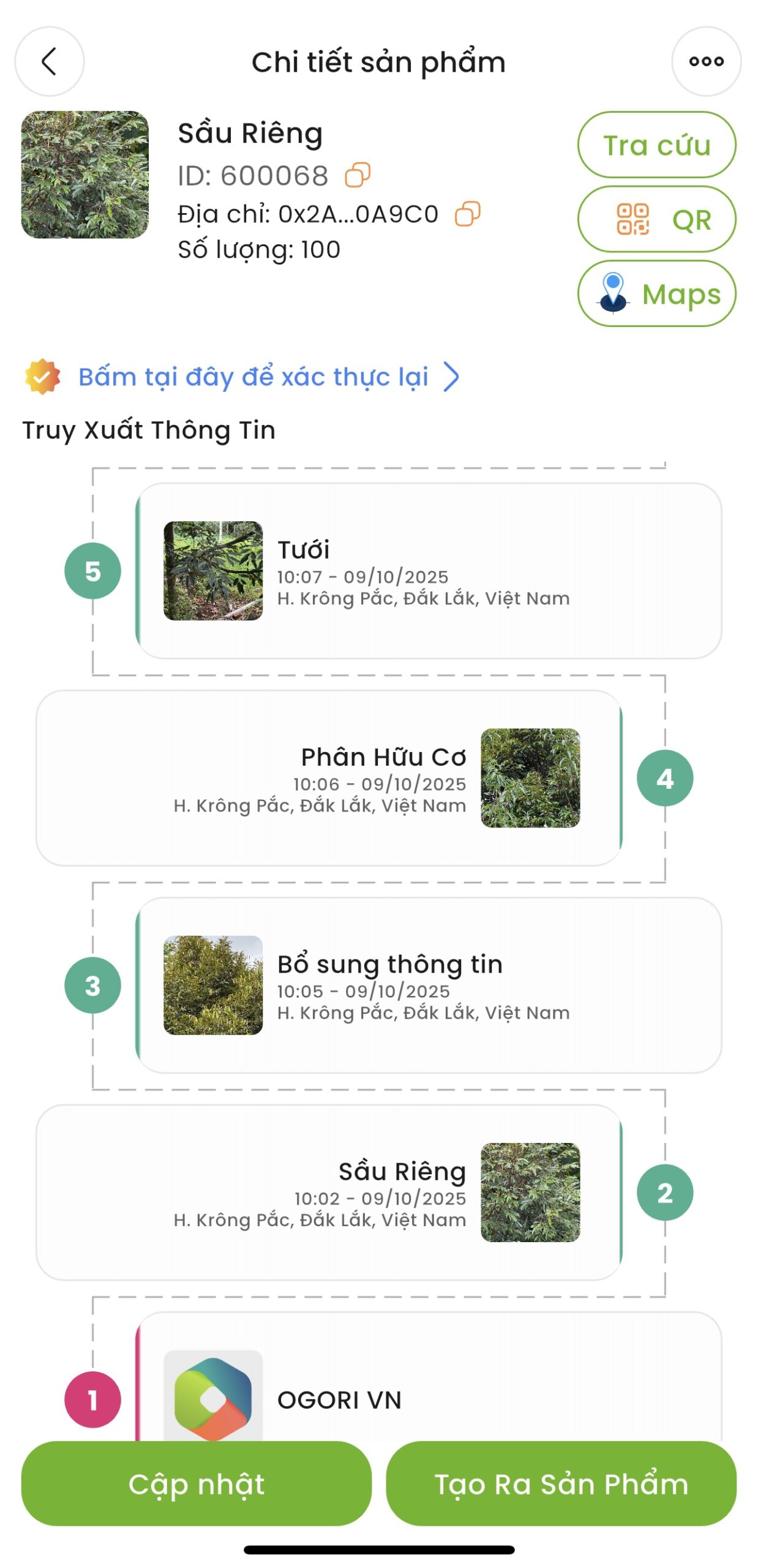
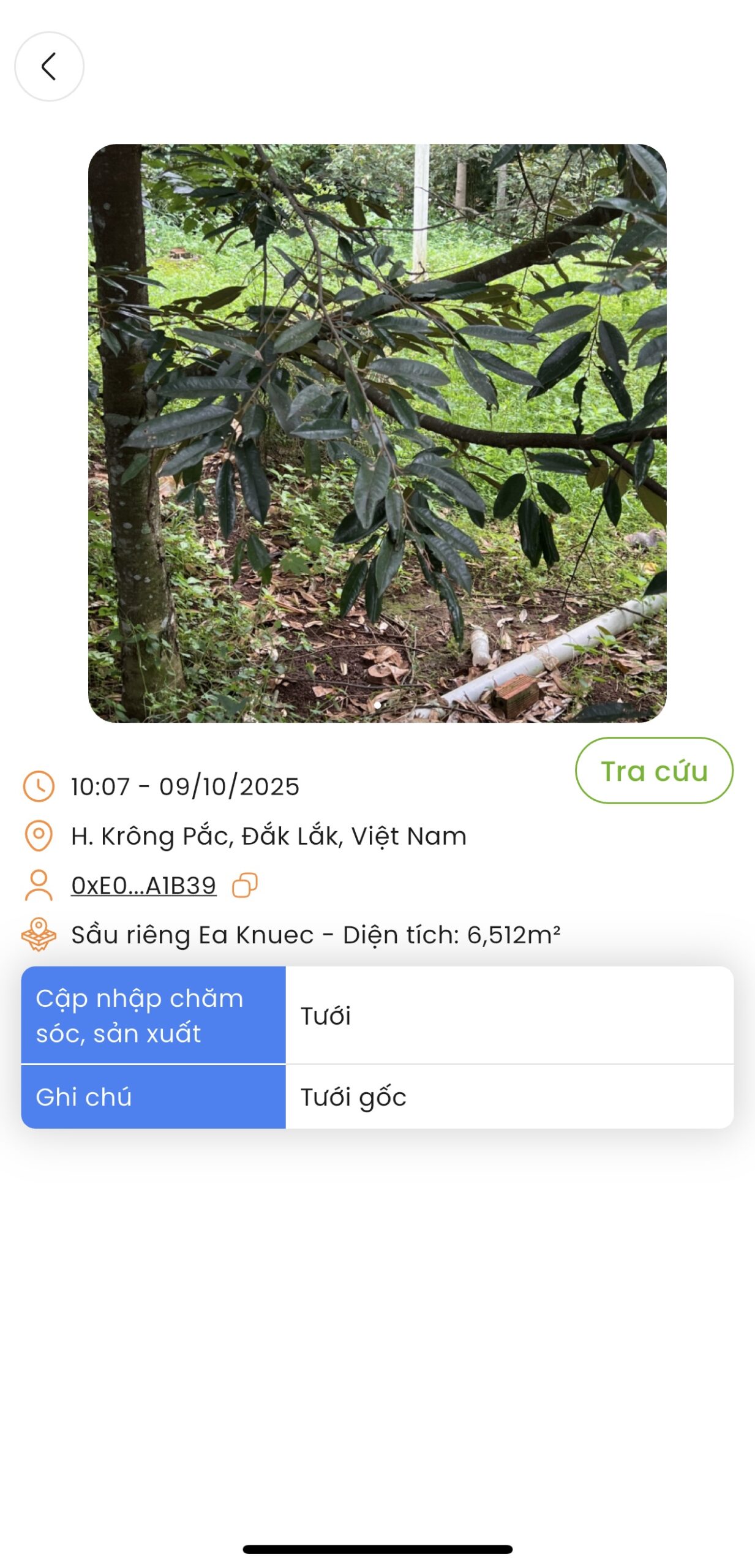
Product information displayed
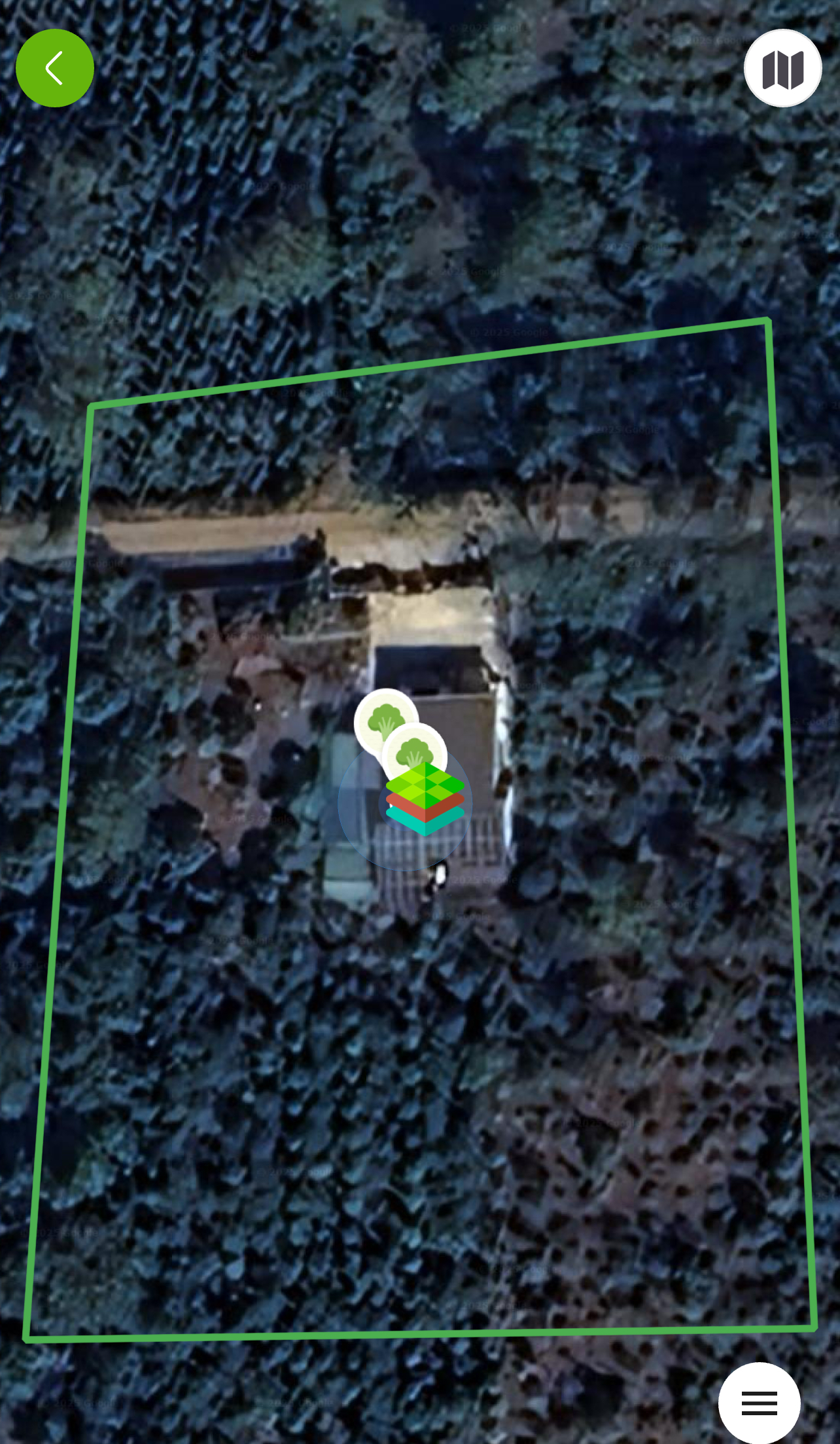
View location on map
Check the actual location of the farming area
🗺️
Press the “MAP” button
Show the location of the farmland on Google Maps
IMG_9532
IMG_9531
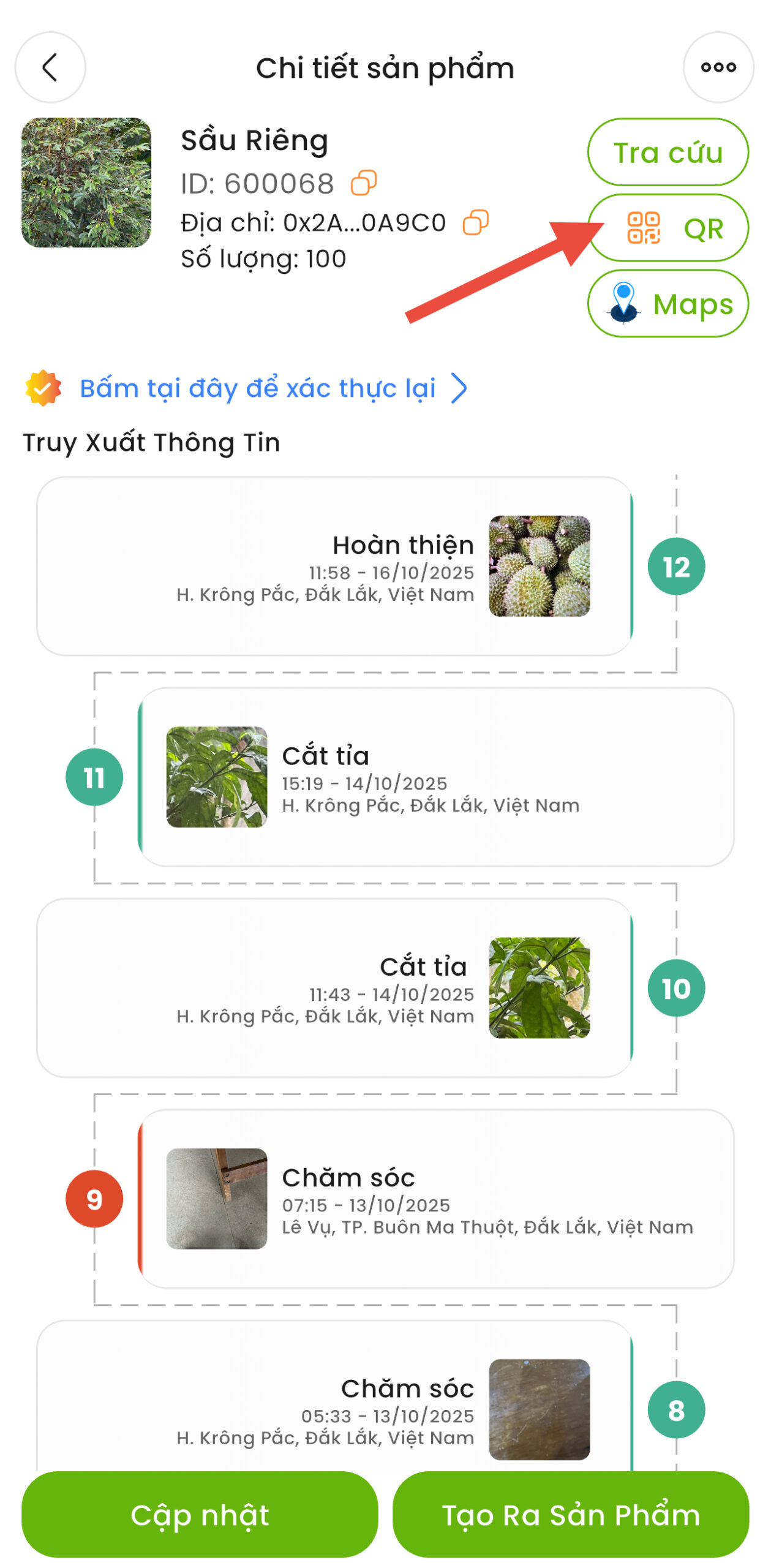
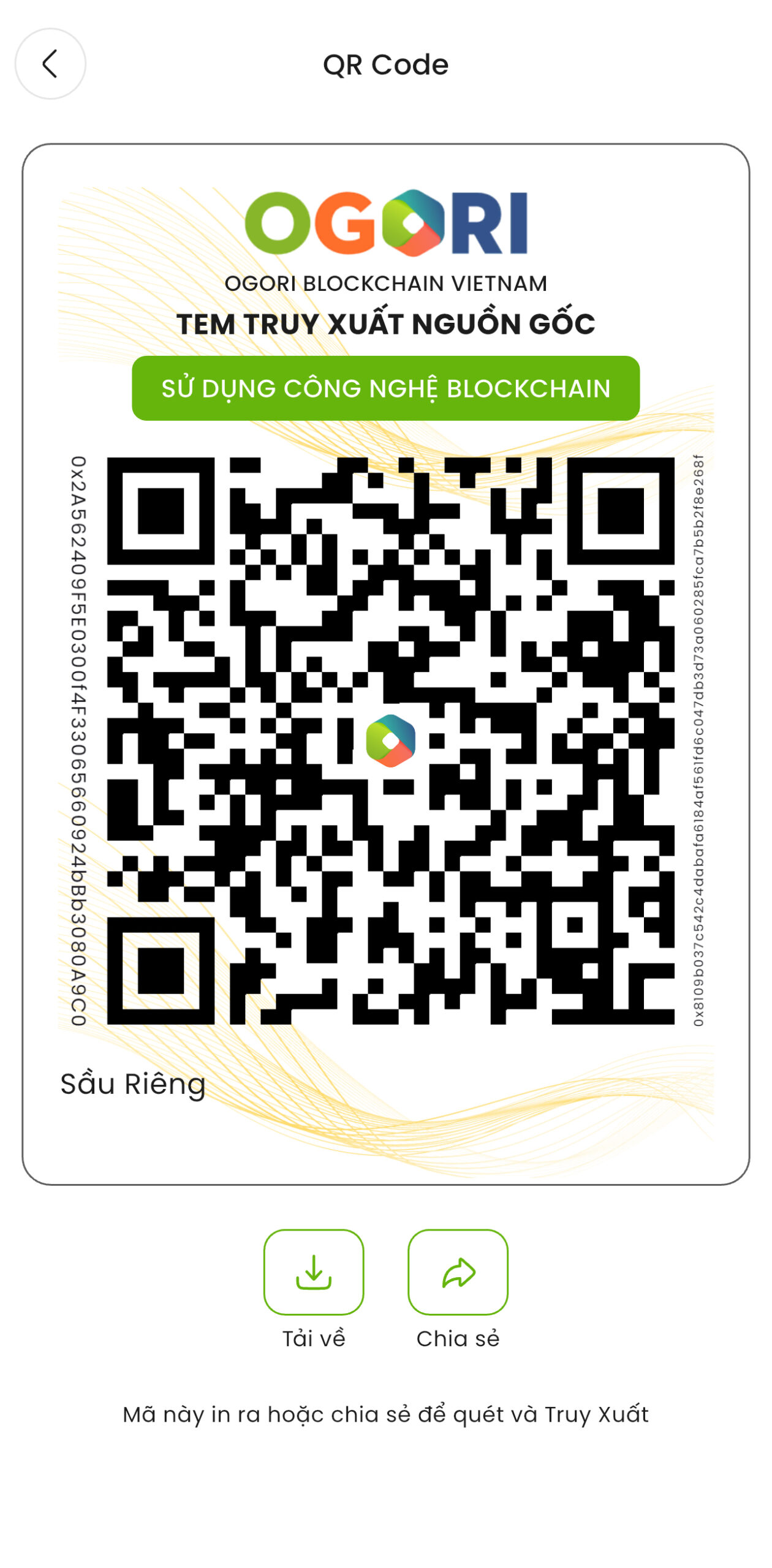
Download QR code (For owners)
Product owners can download QR codes for printing
👤
Press the “QR” button on the product detail screen
→ Download high resolution QR codes for printing stamps, labels, packaging
IMG_9534
IMG_9535
In-depth research on Blockchain
Verify data directly on the Blockchain to ensure absolute transparency
5.1
Press the button “Lookup” on the product information screen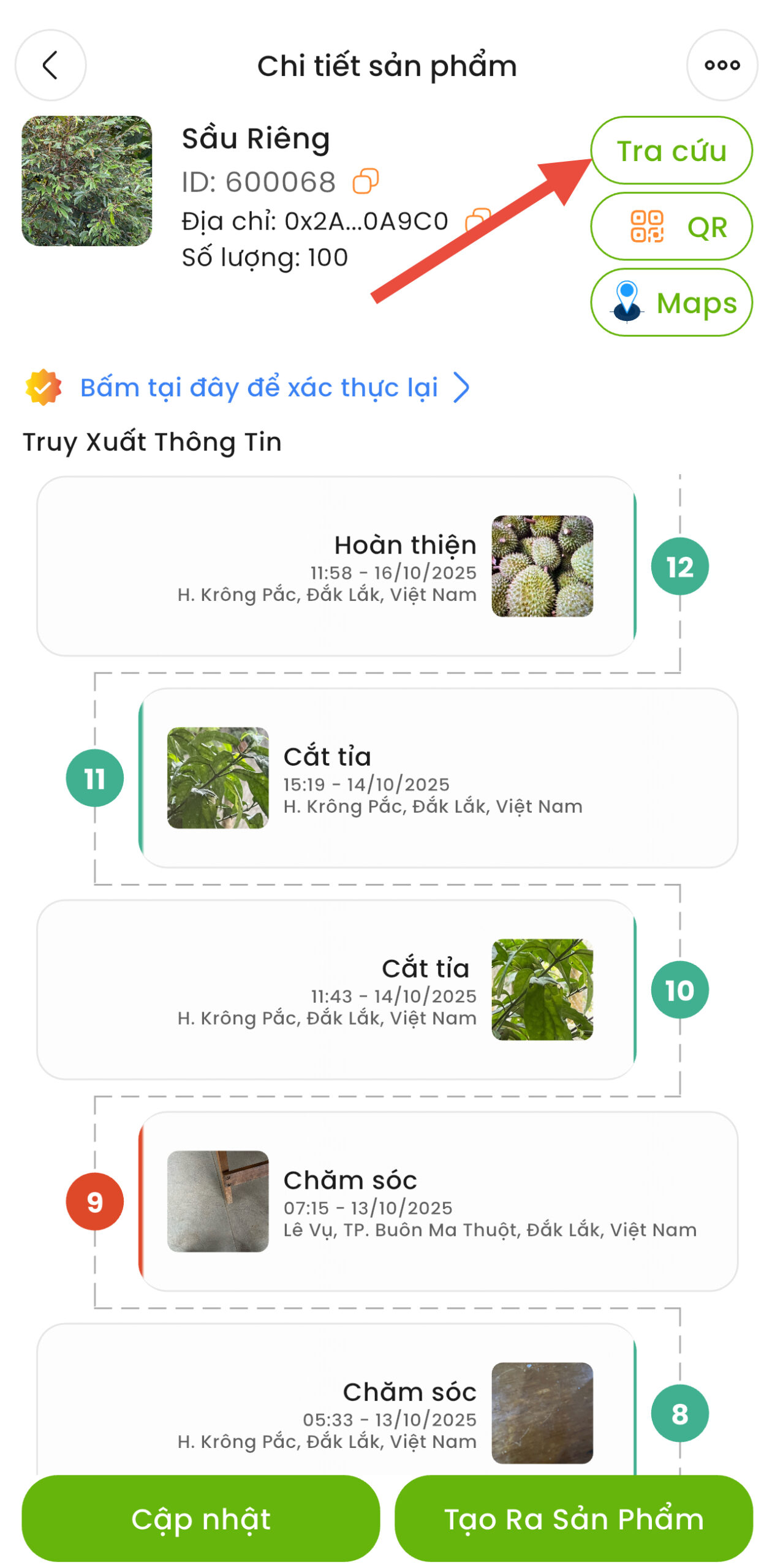
5.2
The system redirects to explorer.ogori.one
5.3
Go to the section “Transactions” (Transactions)
Display a list of all product updates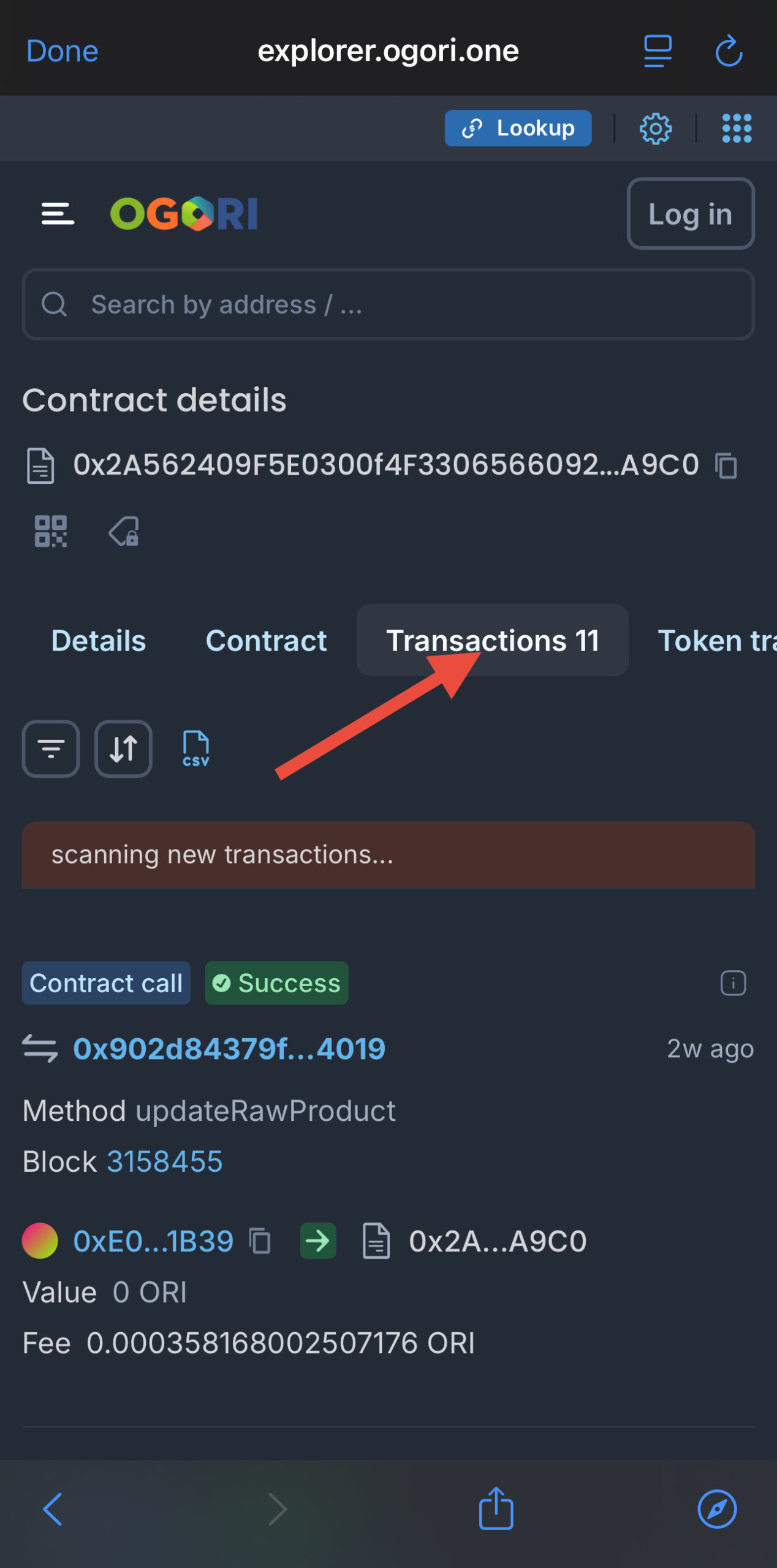
5.4
Select 1 transaction to look up → Scroll down and select “View Detail”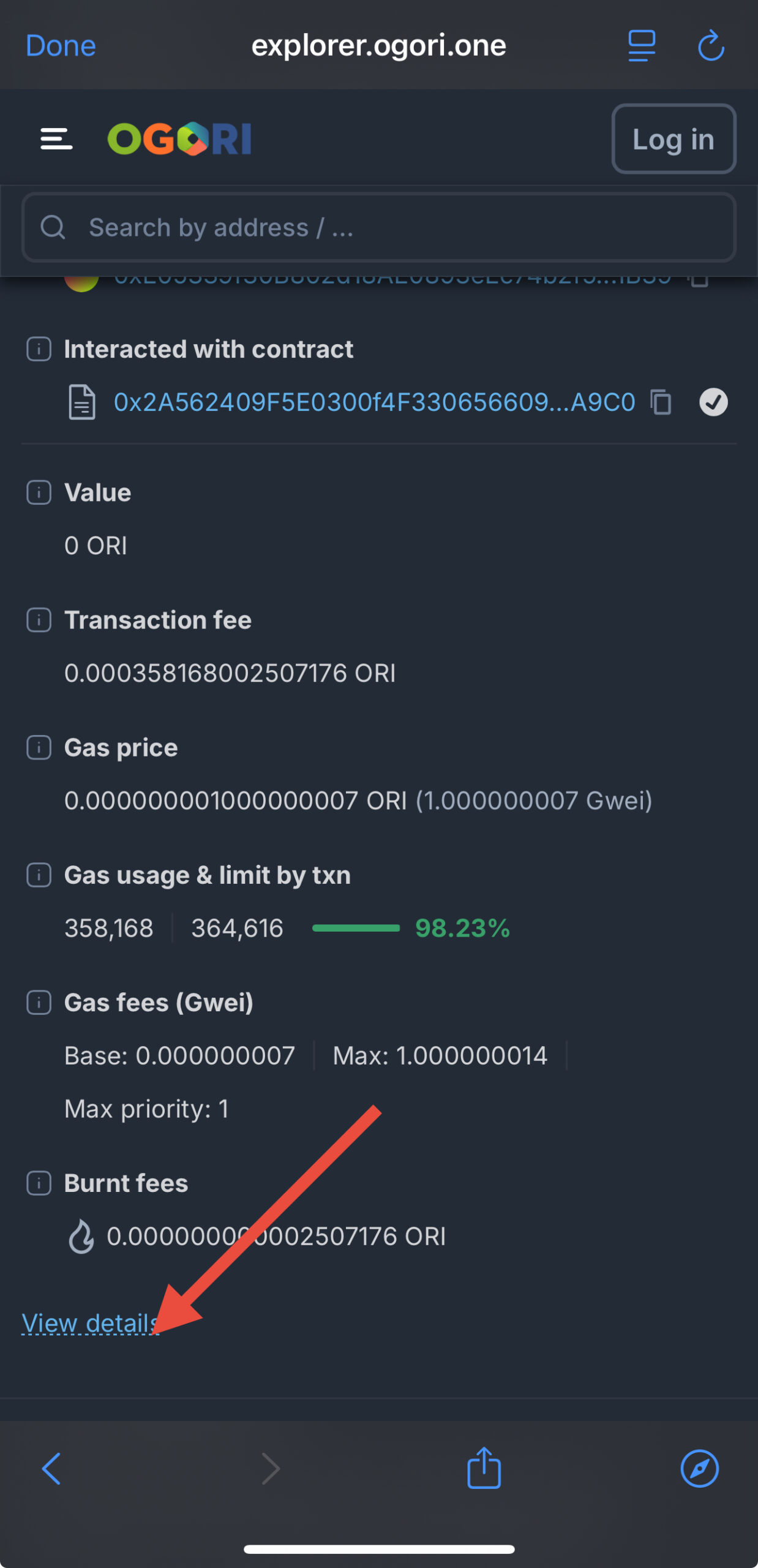
5.5
Scroll down to the section “Decoded Input Data”
View hashes and links of information and image files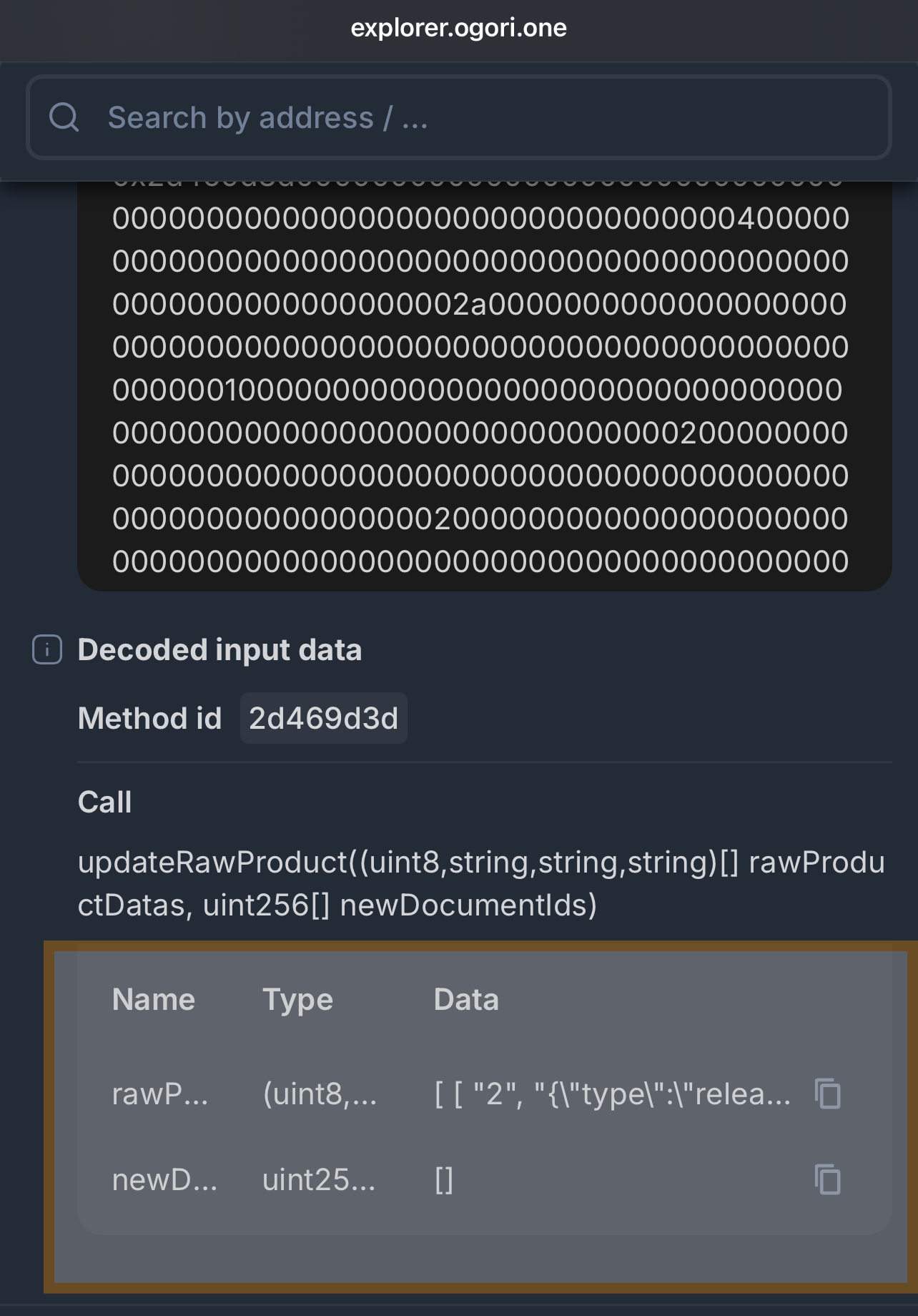
🔐 Authentication mechanism using Hash SHA256
Step 1: Information saved to the Cloud
→
Step 2: Generate SHA256 hash code
→
Step 3: Write hash to Blockchain
Use the lookup tool to visually look up a transaction on the blockchain by getting the transaction link from the explorer in the form (https://explorer.ogori.one/tx/0xea70baed2e68cf26ee1d59082640793d3d1dc54546d448981b6c85cb86971af5) and paste it in https://lookup.ogori.one/
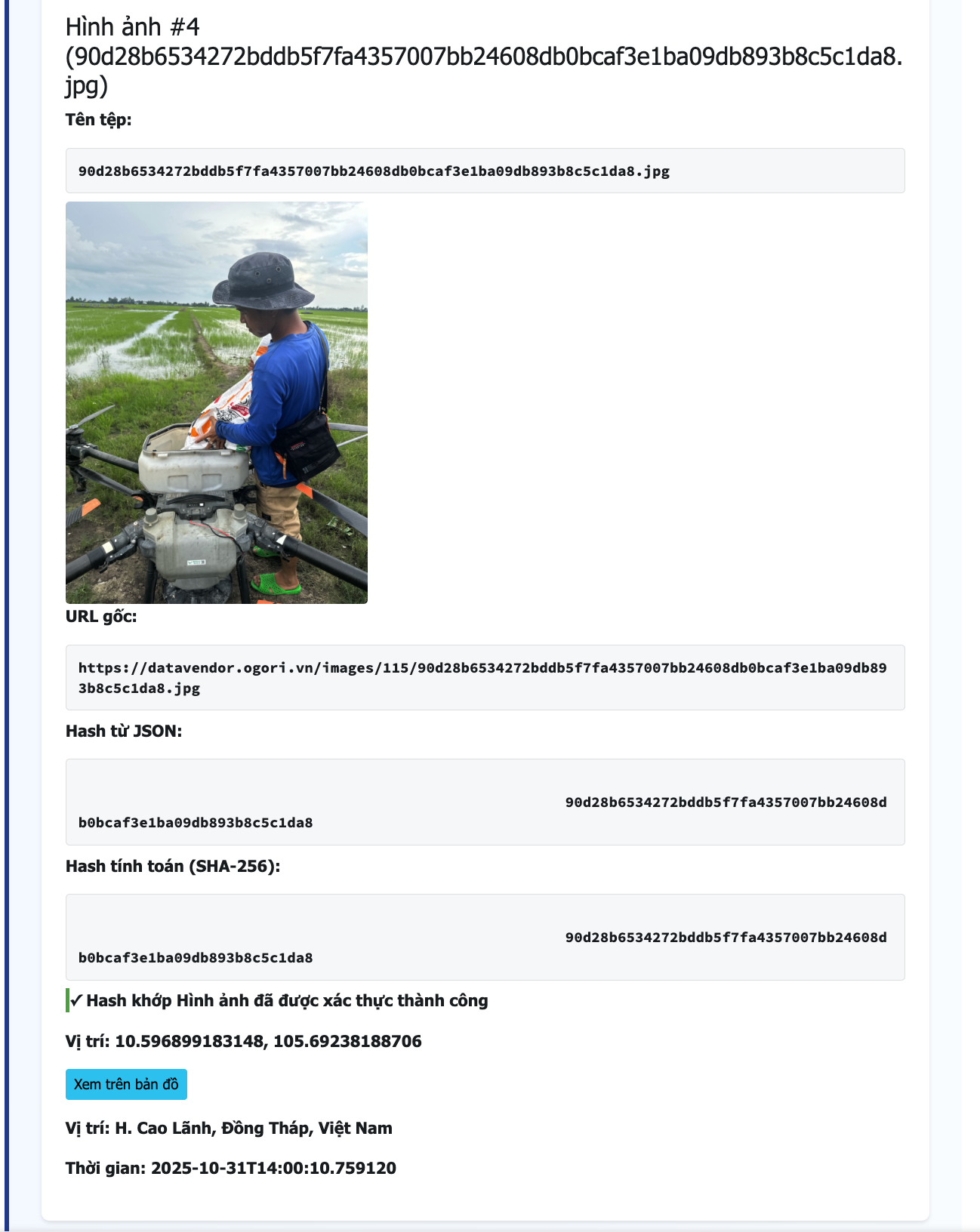
⚠️ Important warning:
If the file on the Cloud (metadata or image) is lost edit, rename, or overwrite, this will create a file with a different hash, does not match the hash recorded on the Blockchain.
→ The system will error report when looking up product history.
💡 Effective search tips
- If the QR code cannot be scanned, make sure it is not blurred, wrinkled, or obscured.
- Use the “Lookup” function to verify information on the blockchain when in doubt
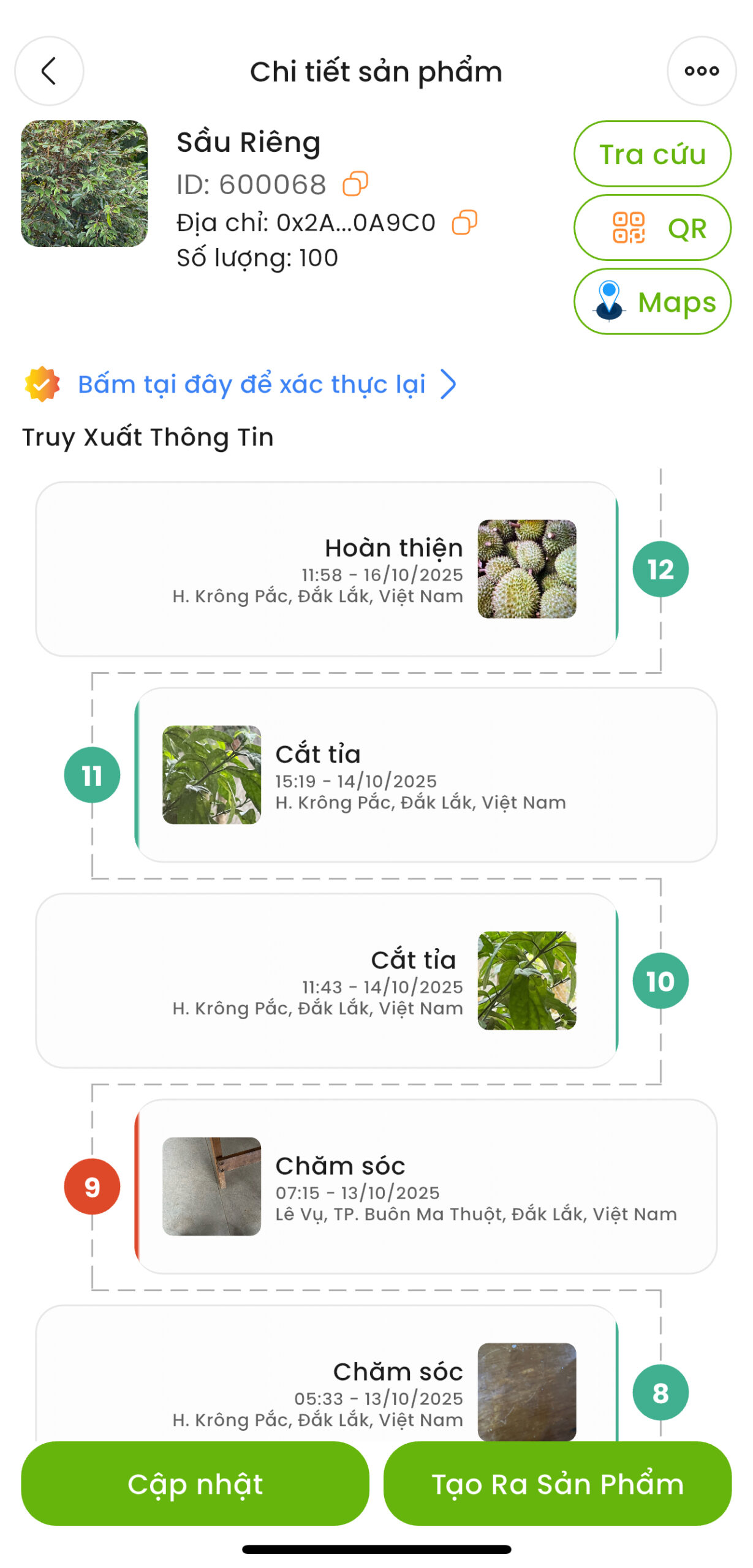
- Check the color displayed on the timeline: Green = safe, Yellow/Red = location warning
- Consumers can ask sellers to prove authenticity via blockchain explorer